TASARIM EKRANI KULLANIM KILAVUZU
Mart 27, 2026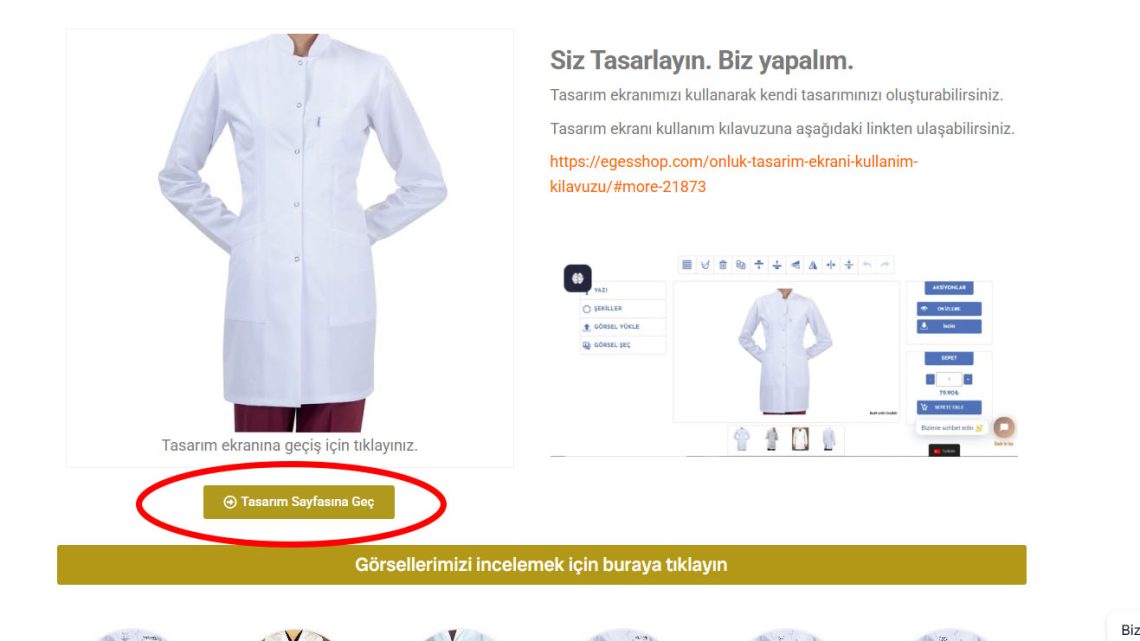
🇹🇷 Türkçe: Kendi Ürününü Tasarla
Sıradan ürünlerden sıkıldınız mı? PCDesigner ile kendi stilinizi yansıtın! İşte adım adım kişiselleştirme rehberimiz:
Adım 1: Tasarım Panelini Açın
Öncelikle özelleştirmek istediğiniz ürünü seçin (örneğin bir Tişört veya Kupa). Ürün sayfasında yer alan büyük “Tasarla” (Design It) veya “Kişiselleştir” butonuna tıklayın. Bu, PCDesigner editörünü tam ekran olarak açacaktır.
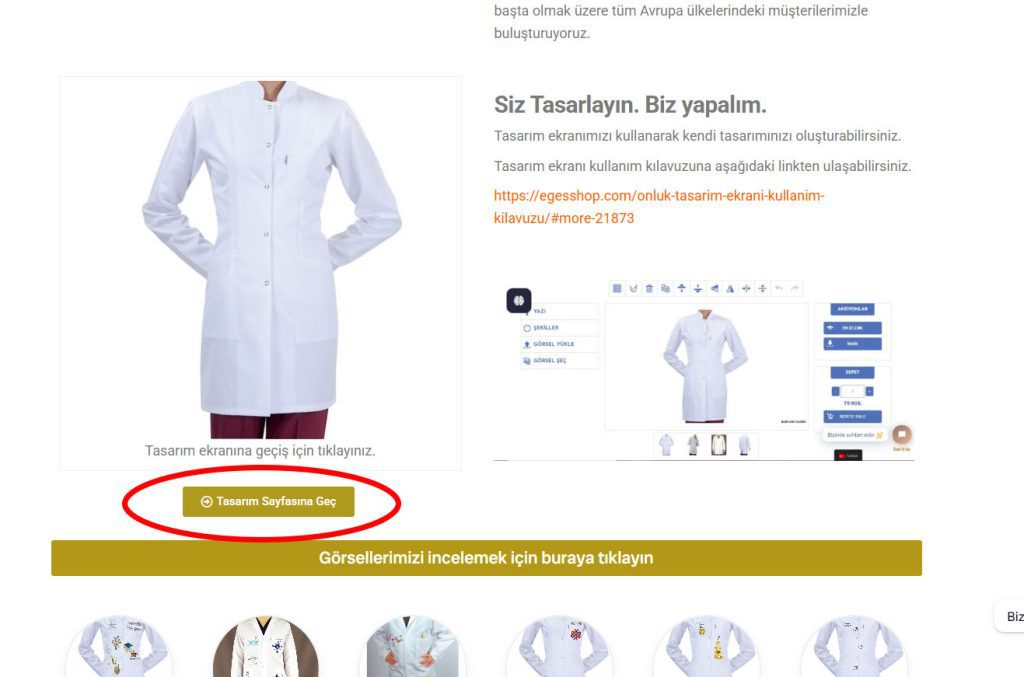
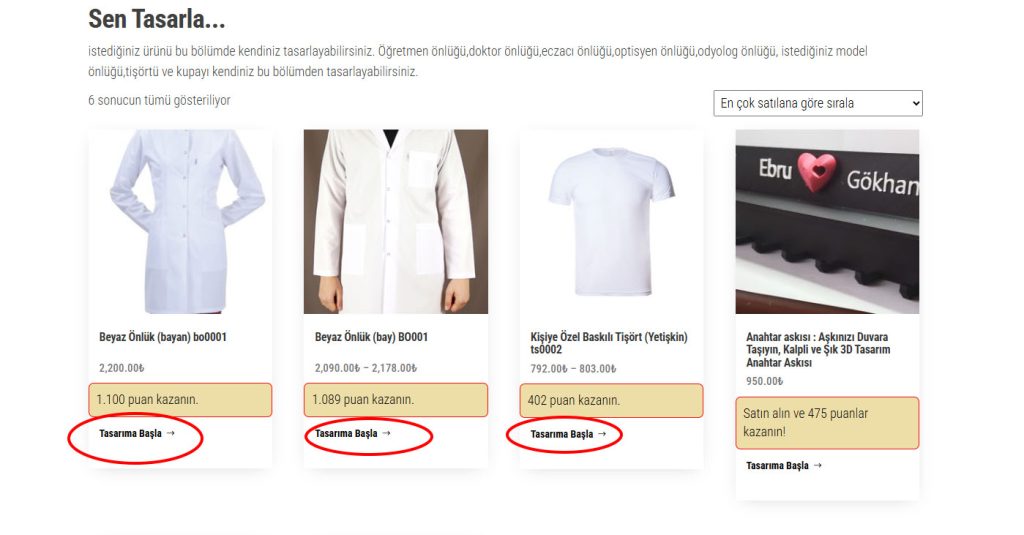
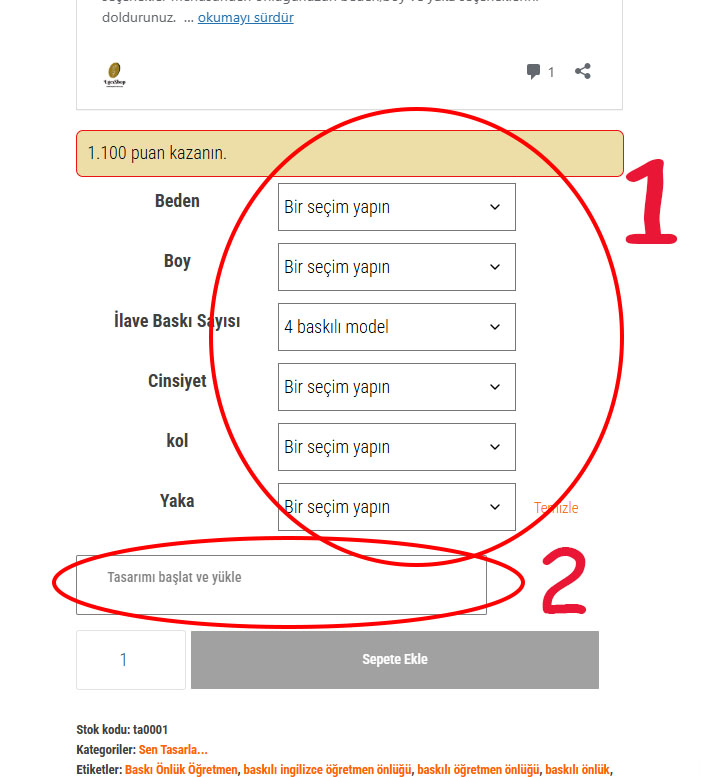
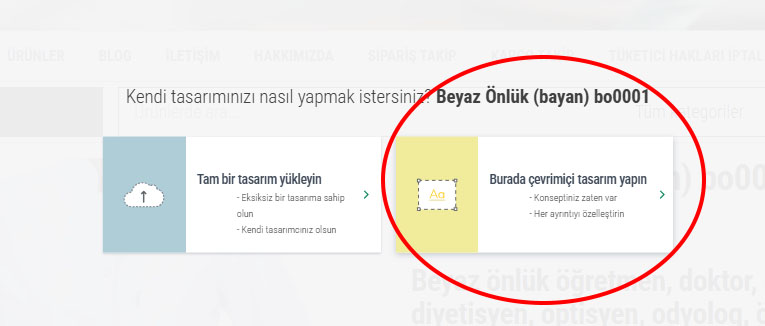
egesshop.com anasayfa da tasarım sayfasına geç butonuna tıklayın . Ardından tasarlamak istediğiniz ürüne tıklayarak beden, boy, yaka vs.. seçenekleri seçtikten sonra “Tasarımı Başlat ve Yükle butonuna tıklayın.
Adım 2: Görsel Yükleyin ve Düzenleyin
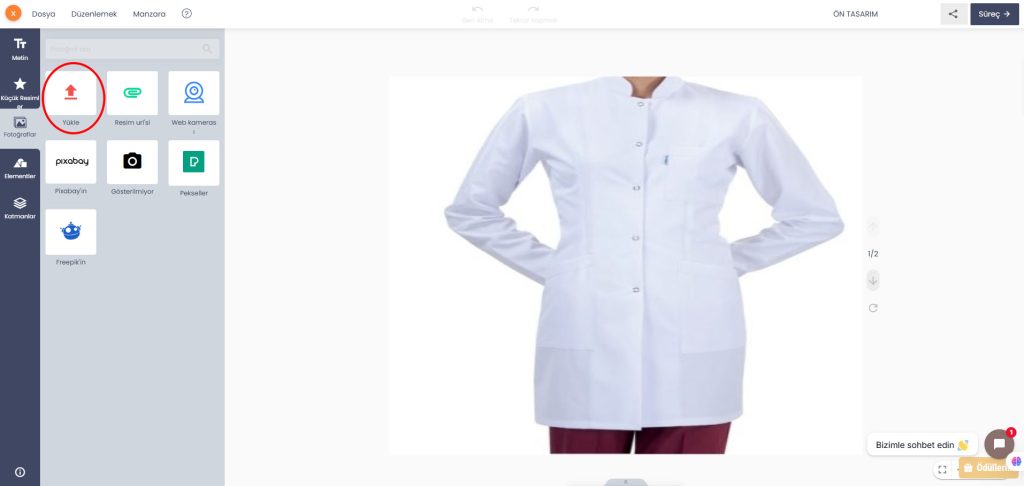
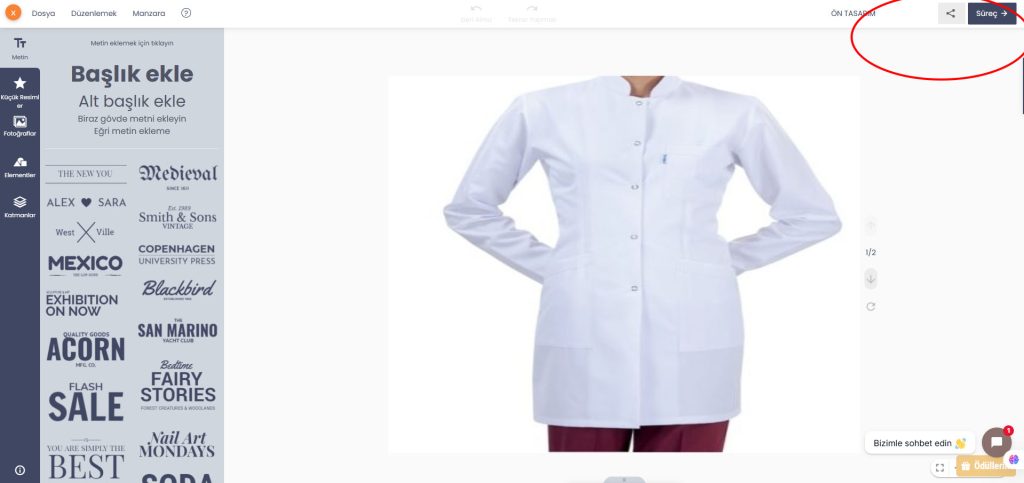
Kendi logonuzu, fotoğrafınızı veya grafiğinizi eklemek için sol menüdeki “Görsel Yükle” simgesini kullanın. Bilgisayarınızdan bir dosya seçin. Görsel yüklendiğinde, onu baskı alanı içinde sürükleyebilir, köşelerinden tutarak boyutlandırabilir veya döndürebilirsiniz.
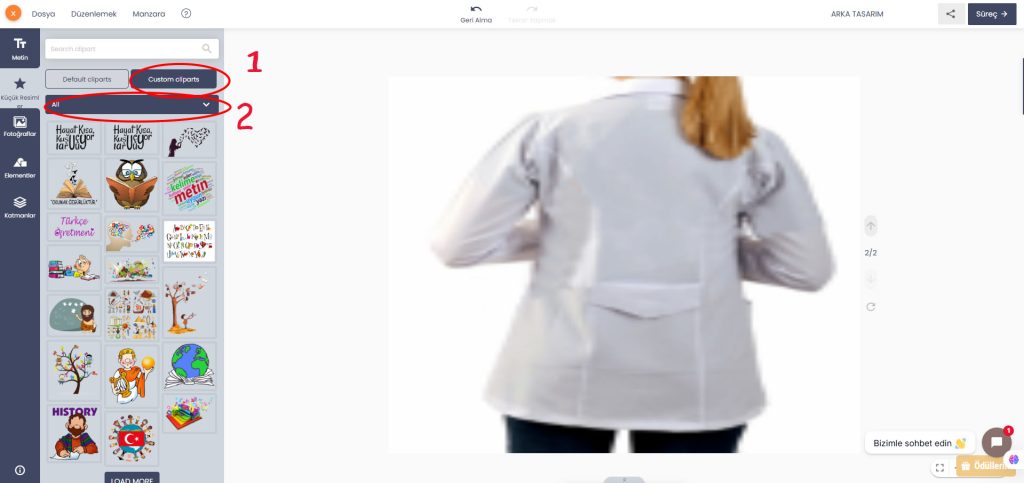
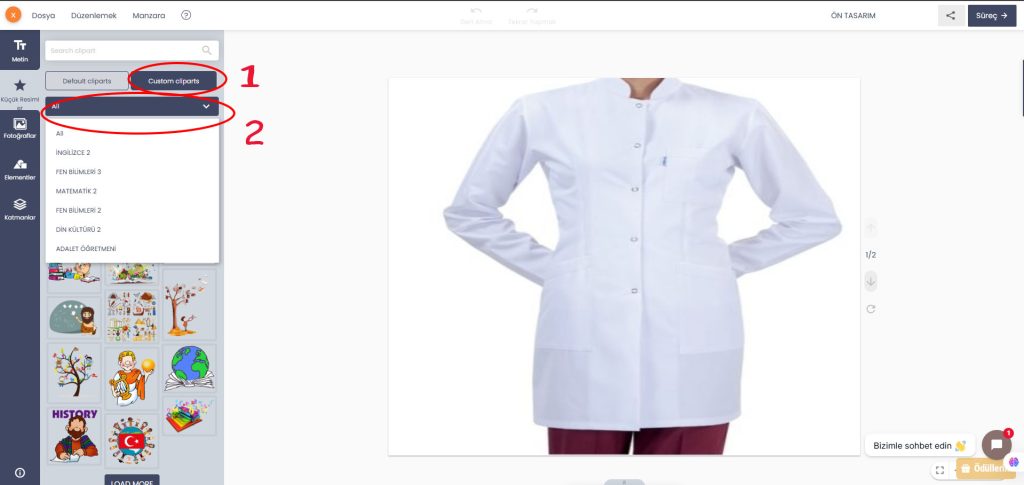
Adım 3: Metin Ekleme ve Font Seçimi
Tasarımınıza bir isim, tarih veya slogan eklemek için “Metin Ekle” aracını tıklayın. Metninizi yazın ve ardından sağdaki panelden font türünü, boyutunu, rengini ve hizalamasını ürününüze en uygun şekilde ayarlayın.
Adım 4: Önizleme ve Sepete Ekleme
Tasarımınız bittiğinde, nasıl göründüğünden emin olmak için “Önizleme” (Preview) butonuna tıklayın. Bu, size ürünün bitmiş halini gerçekçi bir mockup (maket) üzerinde gösterir. Her şey mükemmelse, “Sepete Ekle” butonuna tıklayın.
🇬🇧 English: Design Your Own Product
Personalize your items with ease using our PCDesigner tool. Here’s how you can create your unique design:
Step 1: Launch the Editor
Choose the product you want to customize and click the “Design It” button on the product page. This will open the PCDesigner interface.
Step 2: Upload Your Image
Use the “Upload Image” icon to import photos or graphics from your device. Once uploaded, drag the image onto the product and use the corner handles to resize, rotate, or reposition it.
Step 3: Add Text & Choose Fonts
Click the “Add Text” tool to include a message or name. Use the editing panel to change the font style, color, size, and alignment to match your design perfectly.
Step 4: Preview & Checkout
Click “Preview” to see a realistic mockup of your finalized design. If you are satisfied, click “Add to Cart” to send your design to us for printing.
🇩🇪 Deutsch: Gestalten Sie Ihr Produkt selbst
Verleihen Sie Ihren Produkten eine persönliche Note mit unserem PCDesigner-Tool. So einfach geht’s:
Schritt 1: Editor Starten
Klicken Sie auf der Produktseite auf die Schaltfläche “Design It”, um den Konfigurator zu öffnen.
Schritt 2: Bilder Hochladen
Nutzen Sie das Symbol “Bild hochladen”, um Fotos zu importieren. Nach dem Upload können Sie das Bild auf das Produkt ziehen und an den Ecken skalieren, drehen oder positionieren.
Schritt 3: Text Hinzufügen & Schriftarten Wählen
Klicken Sie auf “Text hinzufügen”, um eine Nachricht zu schreiben. Passen Sie im Bearbeitungspanel Schriftart, Farbe, Größe und Ausrichtung an Ihr Design an.
Schritt 4: Vorschau & Bestellen
Klicken Sie auf “Vorschau”, um ein realistisches Mockup Ihres Designs zu sehen. Wenn alles passt, legen Sie es mit “In den Warenkorb” in den Bestellprozess.
🇫🇷 Français : Personnalisez votre Produit
Exprimez votre créativité avec l’outil PCDesigner. Voici comment créer un design unique en quelques clics :
Étape 1 : Lancer l’Éditeur
Sur la page du produit, cliquez sur le bouton “Design It” pour ouvrir l’espace de création.
Étape 2 : Télécharger une Image
Utilisez l’icône “Télécharger une image” pour importer des photos. Une fois téléchargée, faites glisser l’image sur le produit et utilisez les poignées d’angle pour la redimensionner, la faire pivoter ou la repositionner.
Étape 3 : Ajouter du Texte et Choisir la Police
Cliquez sur l’outil “Ajouter du texte” pour inclure un message. Utilisez le panneau d’édition pour changer le style de police, la couleur, la taille et l’alignement.
Étape 4 : Aperçu et Commande
Cliquez sur “Aperçu” pour visualiser un rendu réaliste de votre design final. Si vous êtes satisfait, cliquez sur “Ajouter au panier”.